Can You Restore a SQL Server Backup to an Older Version?

Last Updated: October 26, 2026
Quick Summary
You cannot restore SQL Server backup to an older version using the native RESTORE command, because SQL Server only supports restoring to the same version or a newer one. Instead, move the schema and data down a version with a BACPAC export and import, or by scripting the database against the older target version.
- A backup header written by a newer release cannot be read by an older engine, so the restore fails before it starts.
- Lowering the compatibility level does not make a backup restorable on an older engine.
- Export to a BACPAC with the Export Data-tier Application wizard or SqlPackage, then import it on the older instance.
- When scripting, set Script for Server Version to the older release in SSMS Generate Scripts.
- Re-create login passwords on the target and map users to the new logins to avoid orphaned users.
Table of Contents
- Why a Native Restore SQL Server Backup to Older Version Fails
- How to Restore SQL Server Backup to Lower Version with a BACPAC
- Script SQL Server Database for Older Version the Right Way
- Migrate SQL Server Logins and Jobs Alongside the Data
- What to Check Before You Downgrade a SQL Server Database
- Common Mistakes That Break a Version Downgrade
- Skip the Downgrade Cycle with DataTamed Clones
- Frequently Asked Questions
Why a Native Restore SQL Server Backup to Older Version Fails
You cannot restore a SQL Server backup to an older version using the native RESTORE command. SQL Server only supports restoring a database to the same version or a newer one. If you try to restore SQL Server backup to an older version, the restore fails before it starts.
The reason is the backup file format. For a deeper explanation of why SQL Server restores are slow, read why SQL Server database restore is so slow. Each SQL Server release writes a backup header that older engines cannot read. According to Microsoft's documentation on SQL Server backup compatibility, a database backup can only be restored on a server running the same or a later version of SQL Server. There is no downgrade path inside the engine itself.
The error you will see is a version mismatch message. The older instance rejects the file outright. No amount of WITH REPLACE or WITH RECOVERY will change that.
So the question changes. It is not "how do I force the restore" because you cannot. It is "how do I move the data and schema down a version safely."
The database version and compatibility level distinction
Two different numbers cause most of the confusion.
- Database version is the internal build number of the engine. It moves with every release and cannot be changed.
- Compatibility level is a setting you can lower. It controls which query optimiser and T-SQL behaviours the database uses.
Lowering compatibility level does not make a backup restorable on an older engine. It only changes how the current engine treats the database. Teams often try this as a workaround and it never fixes the version mismatch.
How to Restore SQL Server Backup to Lower Version with a BACPAC
The BACPAC route is one way to move SQL Server data to a lower version. A BACPAC is a portable file that holds the database schema and its data in a version-neutral format. The older instance rebuilds the database from that file, so the engine version gap disappears.
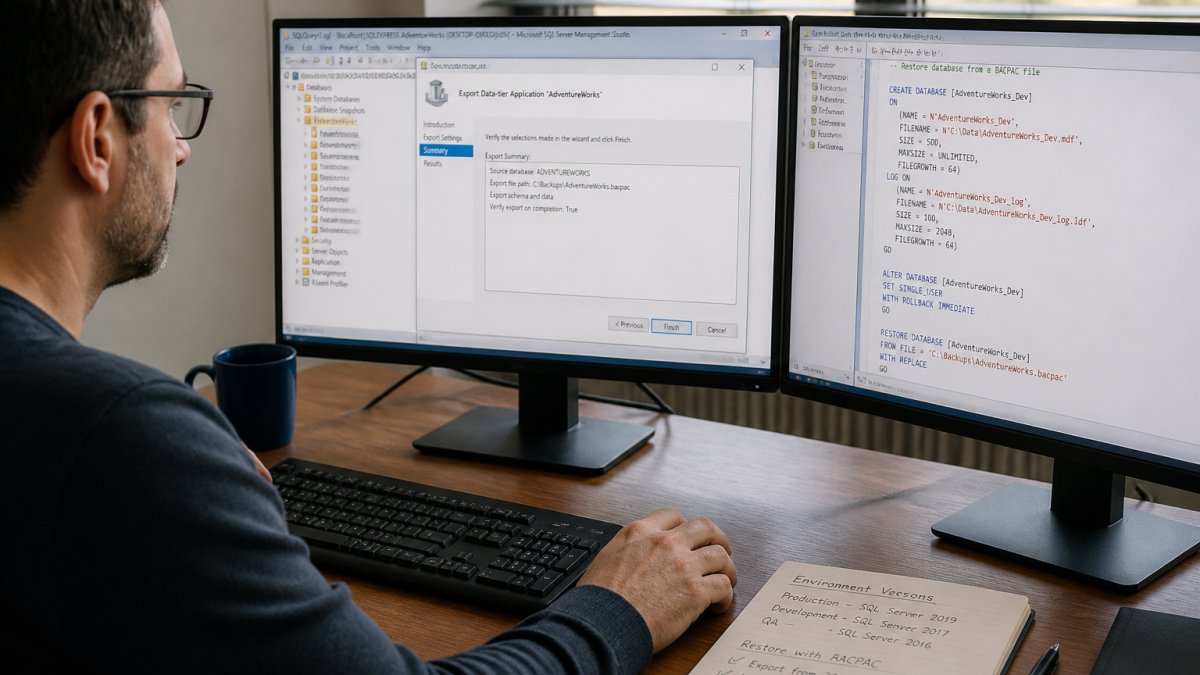
The catch is scale. BACPAC export reads every row and writes it out, so large databases take time. It also captures schema and data only. Logins, jobs, and server-level objects need separate handling, which we cover below.
Export SQL Server Database to BACPAC: Step by Step
Here is the working sequence for the export.
- Open SQL Server Management Studio and connect to the source instance.
- Right-click the database, then choose Tasks, then Export Data-tier Application.
- Set the export location and click Next.
- Review the summary and run the export.
- Wait for completion, then check the file size against the source database.
You can also export SQL Server database to BACPAC from the command line using SqlPackage. That suits repeatable work and CI pipelines.
Watch out: the export fails if any schema object uses a feature the older target does not support. Check for newer data types and syntax before you start, not after a failed export.
Importing the BACPAC into the older instance
Import reverses the process.
- Connect to the older SQL Server instance.
- Right-click Databases, then choose Import Data-tier Application.
- Point the wizard at your BACPAC file.
- Give the new database a name and set the file paths.
- Run the import and review any errors.
After the import, run a quick row count on your largest tables. Compare against the source. Mismatches usually mean a failed table load, and catching that early saves a painful debugging session later.
Script SQL Server Database for Older Version the Right Way
Scripting is the better option when you need schema only, or when the data volume makes a BACPAC impractical. To script SQL Server database for older version, generate the schema against the target version, not the source.
In SSMS, right-click the database, choose Tasks, then Generate Scripts. In the advanced options, set "Script for Server Version" to the older release. This tells the tool to emit syntax the older engine accepts.
A few practical rules:
- Script schema and data separately. Schema first, then a controlled data load.
- Exclude objects the older version cannot support.
- Review the generated script by hand. The wizard does not catch every incompatibility.
- Load data with bcp or the import wizard rather than huge INSERT statements.
Scripting gives you a readable, version-controlled artefact. That matters when several people need to review the change before it runs.
Migrate SQL Server Logins and Jobs Alongside the Data
Data is only half the migration. The database will not work in production without its security context and scheduled work.
To migrate SQL Server logins and jobs, handle three things:
- Logins. Script them from the source, but re-create the passwords on the target. Password hashes do not transfer cleanly across versions.
- Users and permissions. Map database users to the new logins after the import. Orphaned users are the most common post-migration support ticket.
- SQL Agent jobs. Script each job, its steps, and its schedules. Test every job on the older instance before switching anything over.
A common mistake is migrating the database and calling it done. The application then fails at login or a nightly job silently stops running. Build a checklist and tick each item off.
What to Check Before You Downgrade a SQL Server Database
A short pre-flight check prevents most failed downgrades. Run through this list before you touch the export.
- Feature usage. Search the schema for data types, functions, and syntax introduced after the target version.
- Collation. Confirm the target instance supports the source collation.
- Size and time window. Estimate export and import time. Large databases need a maintenance window.
- Dependencies. List linked servers, credentials, and external connections the database relies on.
- Sensitive data. Know where personal data sits before it lands on a lower environment.
That last point deserves attention. Development and test instances rarely have the same controls as production. If you are moving real data down, mask it first. Our guide on how to clone SQL Server databases safely covers PII masking and version validation.
Common Mistakes That Break a Version Downgrade
The same failures show up again and again. Here are the ones that cost the most time.
- Assuming compatibility level fixes the restore. It does not. The engine version is the blocker.
- Exporting without checking feature support. The import fails partway through, leaving a half-built database.
- Forgetting orphaned users. The app connects, then fails on permission checks.
- Skipping the row count check. Silent data loss goes unnoticed until testing.
- Moving unmasked production data to a lower environment. This is a compliance problem, not just a technical one.
Most of these are avoidable with a checklist and a test run on a spare instance.
These are the recurring mistakes that cause the most wasted time during a downgrade.
| Mistake | Why it breaks the downgrade |
|---|---|
| Assuming compatibility level fixes the restore | The engine version is the blocker |
| Exporting without checking feature support | Import fails partway, leaving a half-built database |
| Forgetting orphaned users | The app connects, then fails on permission checks |
| Skipping the row count check | Silent data loss goes unnoticed until testing |
| Moving unmasked production data to a lower environment | A compliance problem, not just a technical one |
Skip the Downgrade Cycle with DataTamed Clones
Manual downgrades also repeat every time someone needs a fresh copy for development or testing.
DataTamed's self-hosted, agent-based platform enables teams to rapidly provision lightweight, secure SQL Server database clones within their network. It offers automated PII masking and production-quality clones typically under 50 MB. It supports full version compatibility for SQL Server.
The compliance side matters too. DataTamed offers automatic PII masking and exportable, auditor-ready Data Masking Reports.
If you want the side-by-side, see DataTamed versus traditional backup-restore across speed, storage, masking, and audit trail. For the concrete workflow, read SQL Server backup to clone done right. When you are ready to review pricing, visit DataTamed's pricing page. A free trial is available.
Frequently Asked Questions
Can you restore a SQL Server backup to an older version?
No. A native backup taken on a newer SQL Server cannot be restored on an older engine, because the backup file carries the internal version number of the instance that created it. The older engine rejects it outright. To move data down a version you have to use a logical transfer instead: export to a BACPAC, generate scripts with the target version selected, or use a data comparison tool. Each of these recreates objects rather than replaying pages, which is why they work across versions.
Can I use a BACPAC file to move a database to an older SQL Server version?
Yes, it is one route for a straightforward downgrade. A BACPAC stores schema and data rather than engine pages, so the older instance can import it. Export from the source with the Export Data-Tier Application wizard, tick the option to verify the export, then import into the target. Watch for features the older engine lacks, such as newer string functions in computed columns or certain index types, which will fail on import and need editing first.
How do I migrate logins, jobs and other objects when moving to an older SQL Server version?
Backups and BACPAC files do not carry server-level objects. Script the logins from the source using SMO or the Generate Scripts wizard, and re-create them with the original SIDs so database users stay mapped. For SQL Agent jobs, script each job to a file and run it on the target, then re-point any linked server or proxy references. Check that the target instance has the same collation, or user mappings will break silently after the restore.
What should I check before downgrading a SQL Server database?
Confirm the target engine build, because compatibility level alone does not make a newer database usable on older software. List any features in use that the older version does not support, including newer functions, temporal tables, and columnstore indexes. Check the collation of both instances, the size of the data against available space, and whether any encrypted objects rely on keys the target cannot host. Run a test import into a non-production instance before touching anything live.
Restoring a backup to an older SQL Server version is not a restore problem. It is a migration problem, and the manual routes stay slow however carefully you run them. DataTamed replaces that cycle with self-service cloning, automatic PII masking, and full version compatibility, so your teams get fresh, production-quality databases without the wait. Get started with DataTamed and cut the downgrade work out of your release process.
